






Live Chat

Domain Scan

(empty)

Login

How to Integrate Eclipse with cPanel
(20-feb-2025)
Do you want to streamline your development workflow by deploying code directly from Eclipse to your web server? Integrating Eclipse with cPanel via FTP is an efficient solution. This step-by-step guide walks you through the process of integrating Eclipse with cPanel via FTP. By following these steps, you can easily deploy your code changes directly from your development environment to your live hosting, saving time and reducing the risk of errors.
- Creating an FTP account in cPanel
- Installing and configuring the Remote System Explorer plugin in Eclipse
- Establishing a secure FTP connection from Eclipse to your cPanel server
1. Creating an FTP Account in cPanel
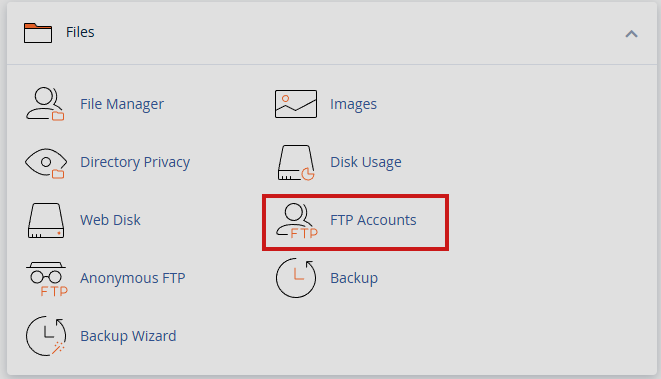
Step 1: Log in to cPanel and Access FTP Accounts
Use your cPanel login credentials to access your hosting control panel. Once inside, locate and click the FTP Accounts section.
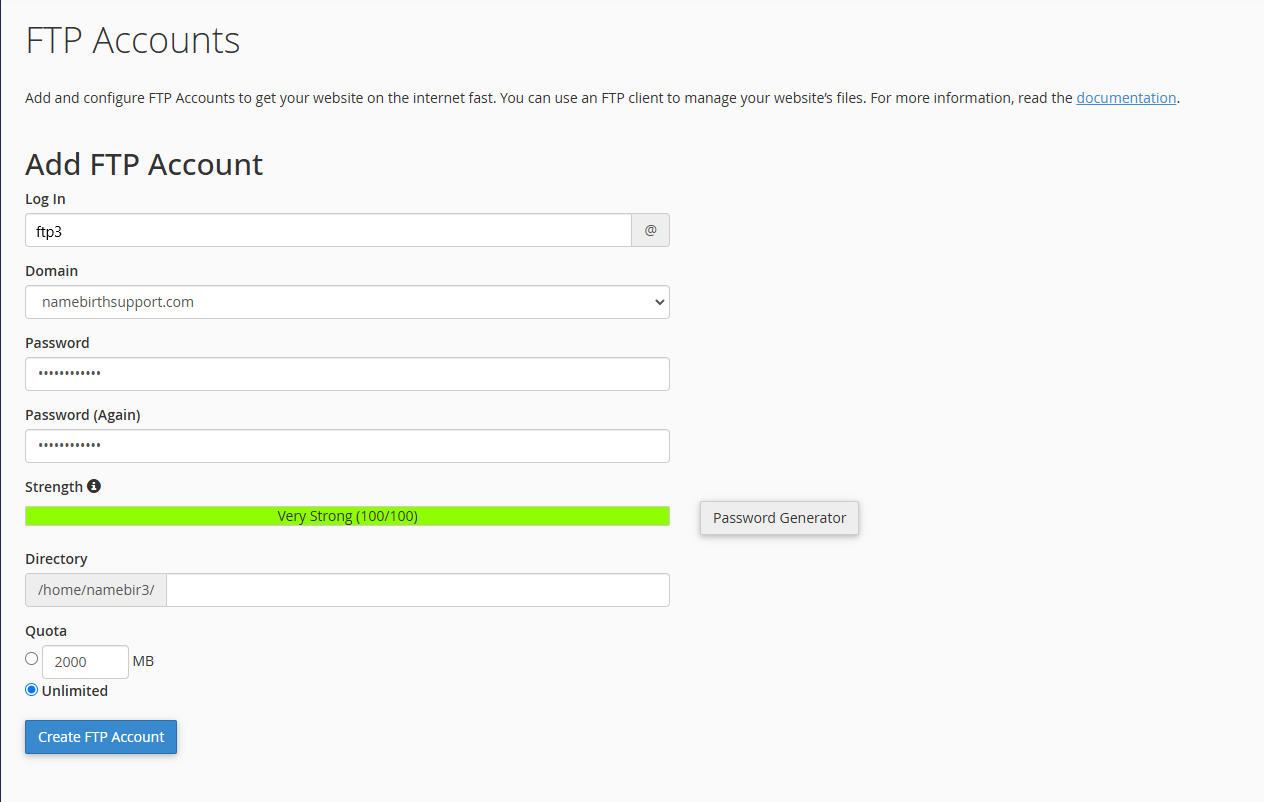
Step 2: Add a New FTP Account
- Log In: Enter your desired username (e.g:
ftp3). - Domain: Select the correct domain (e.g: namebirthsupport.com).
- Password: Set a secure password.
- Directory: Specify the directory this user can access (e.g:
public_html/). - Quota: Set a storage limit or choose "Unlimited."
Click Create FTP Account once you've filled in these details.
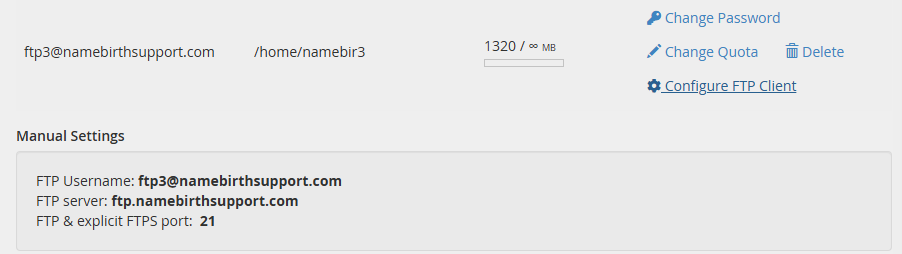
Step 3: Review Your FTP Details
After creating your FTP account, click on the Configure FTP Client button next to the relevant account to see the FTP configuration details:
- FTP Username (e.g:
ftp3@namebirthsupport.com) - FTP Server (e.g:
ftp.namebirthsupport.com) - FTP Port (usually
21)
Keep this information handy; you'll need it when setting up Eclipse.
2. Installing the Remote System Explorer Plugin in Eclipse
Eclipse supports various plugins for connecting to remote servers. The Remote System Explorer (RSE) plugin provides an easy way to set up FTP connections directly from the IDE.
Step 1: Access the Plugin Installation Menu
- Open Eclipse.
- Go to Help > Install New Software
- Select a valid repository (e.g: "All Available Sites").
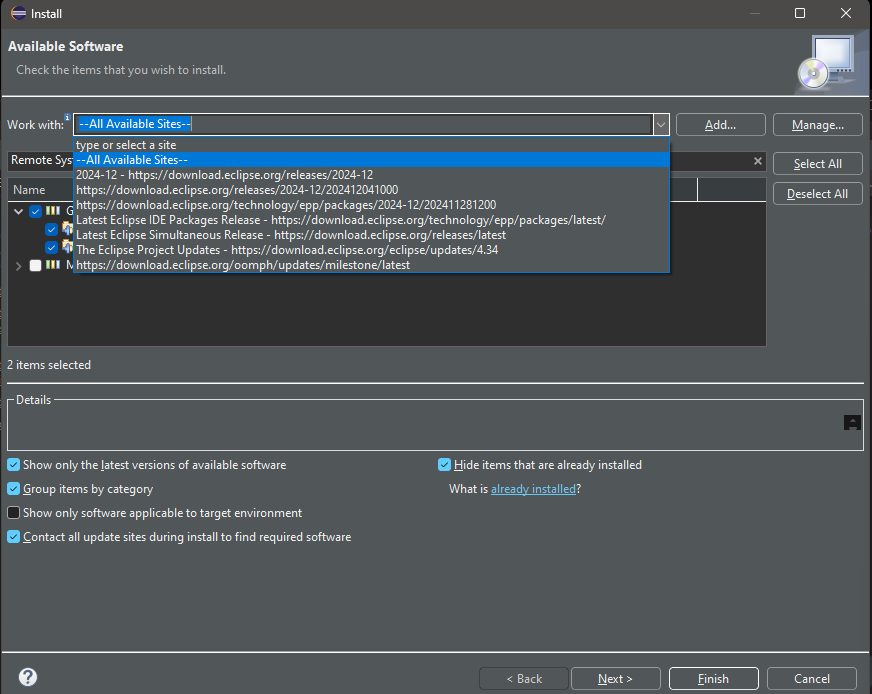
Step 2: Locate and Select Remote System Explorer
- Search for "Remote System Explorer".
- Check the boxes for the components you need:
- Remote System Explorer End-User Runtime
- Remote System Explorer User Actions
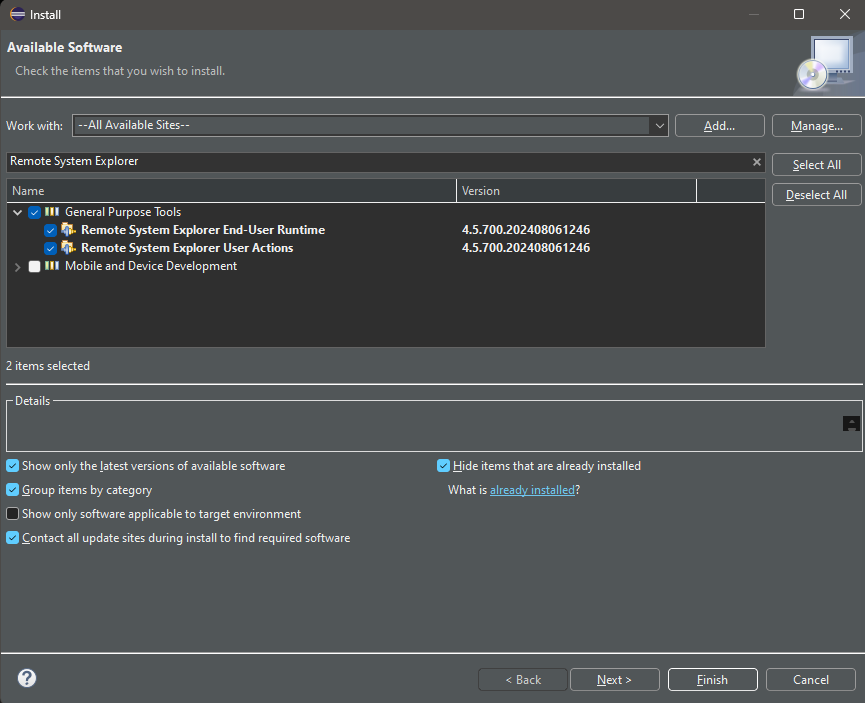
Step 3: Complete the Installation
- Click Next, accept the license agreement, and proceed.
- Once installation completes, restart Eclipse when prompted.

3. Configuring Eclipse for FTP Connection
With the RSE plugin now installed, you're ready to create a remote FTP connection to your server.
Step 1: Open the Remote System Explorer Perspective
- Go to Window > Perspective > Open Perspective > Other
- Choose Remote System Explorer and click Open.
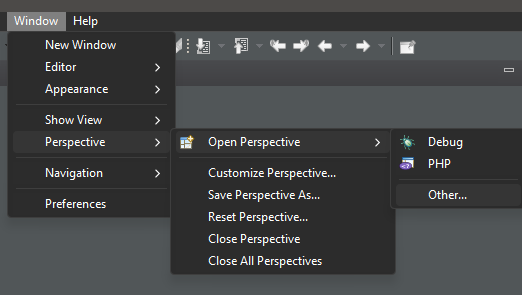
Step 2: Define a New Connection
- In the Remote Systems view (usually on the left side), right-click and select New > Connection
- Alternatively, click the three dots and select New Connection.
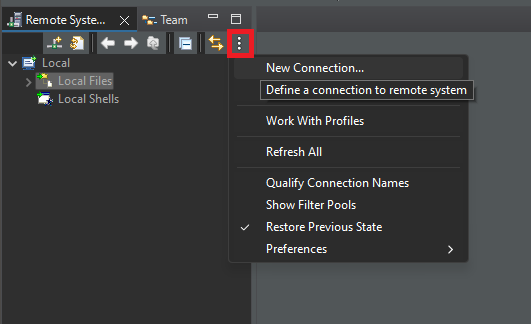
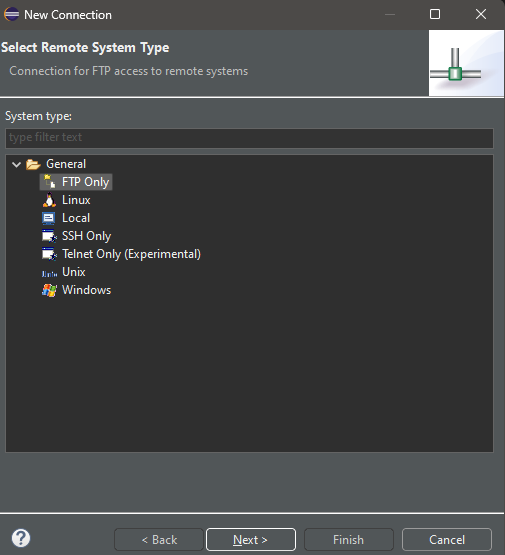
Step 3: Choose FTP Only
When the New Connection wizard appears:
- Select FTP Only as the system type.
- Click Next.
Step 4: Enter FTP Connection Details
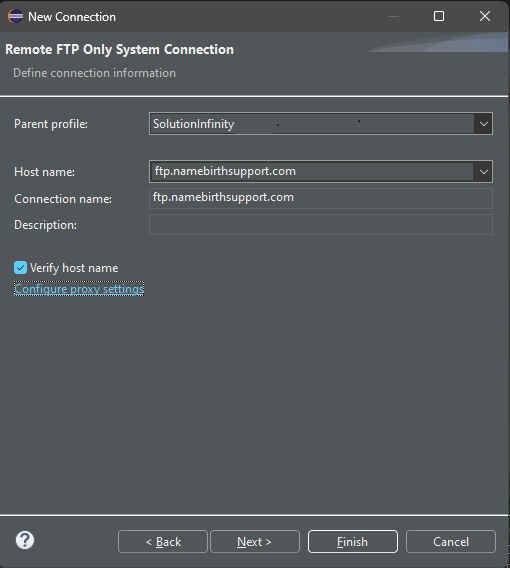
Fill in the FTP credentials you gathered from cPanel:
- Host Name: The FTP host (e.g:
ftp.namebirthsupport.com). - User ID: The username (e.g:
ftp3@namebirthsupport.com). - Password: The password you set in cPanel.
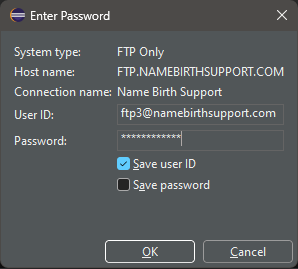
Below dialogue will sometimes appear only when you select the folder you want to visit from Eclipse side panel.
Step 5: Save and Connect
- Complete the wizard by clicking Next or Finish.
- In the Remote Systems view, right-click your new connection and select Connect to test it.
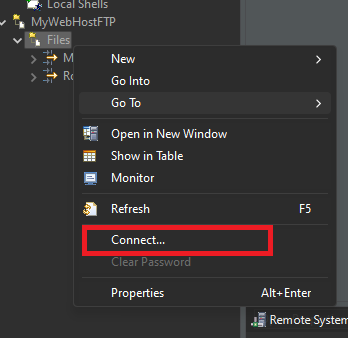
If everything's set up correctly, you'll see your server's directory structure within Eclipse. You can now drag and drop files, rename folders, and manage your website without leaving your IDE. Just enter 'Save' and the code will be uploaded to cPanel in no time, and it will be published on your website.
Conclusion
Integrating Eclipse with cPanel via FTP is a powerful way to streamline your web development process. By setting up an FTP account in cPanel, installing the Remote System Explorer plugin in Eclipse, and configuring the connection, you can efficiently manage your website files directly from your IDE. This setup not only saves time but also reduces the chances of errors, making your development workflow more productive and reliable. For any further assistance, don't hesitate to reach out to Register.lk support. Happy coding!Streamline your development process by integrating Eclipse with cPanel via FTP.
 Written by: Register.lk Support Hero - Kesaru