




Live Chat

Domain Scan

(empty)

Login

Top 10 Mistakes to Avoid When Migrating Your Website to a New Host
(18-oct-2025)
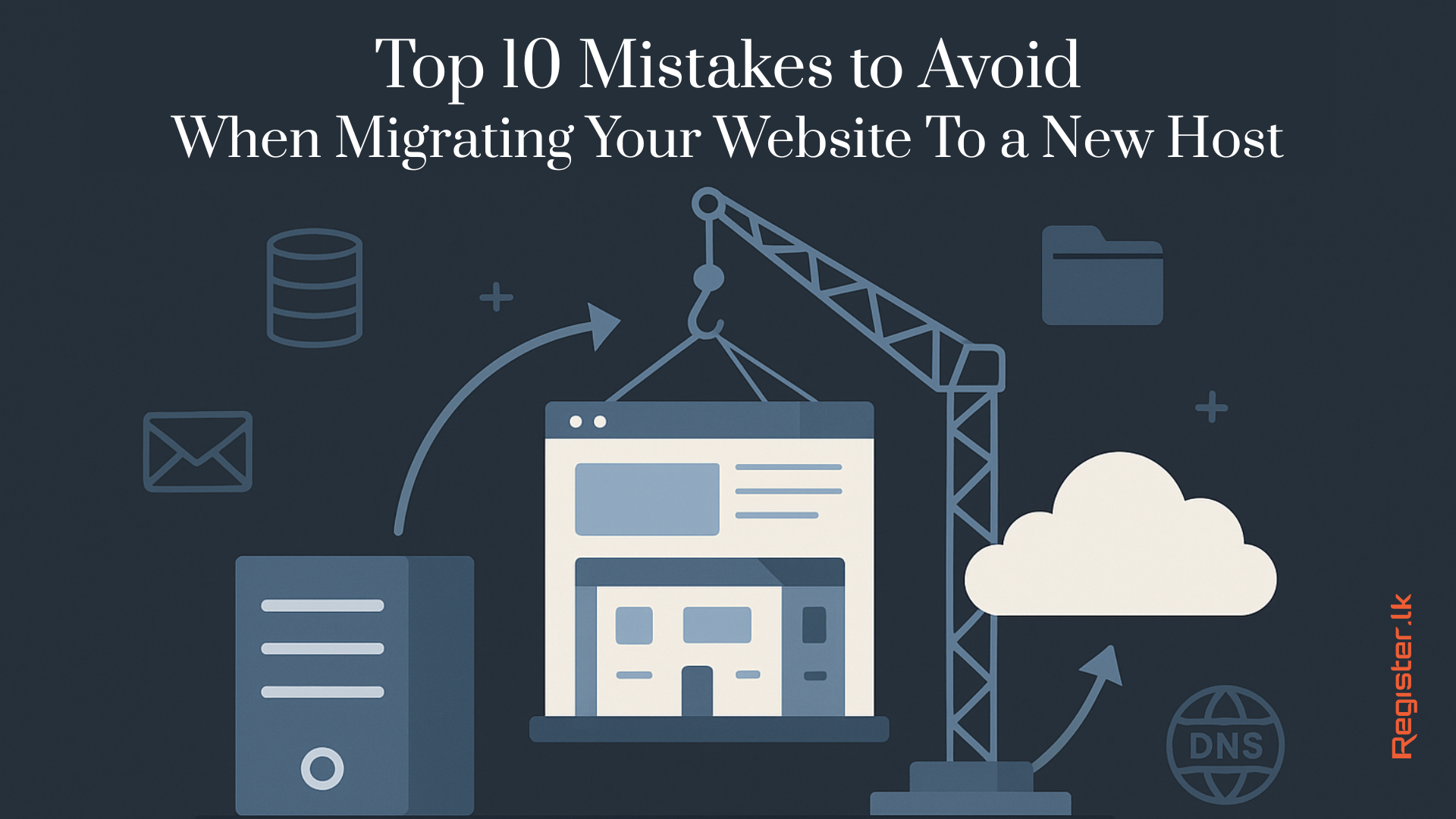
Switching hosting providers can feel like moving to a new house - exciting, but full of opportunities to accidentally leave something important behind. Whether you're moving for better performance, lower costs, or improved support, avoiding these common mistakes will help you make the transition smoothly.
1. Not Backing Up Everything Before You Start
Many website owners assume the migration will "just work," only to lose critical files or databases mid-transfer. According to web hosting statistics, nearly 40% of migration failures stem from incomplete backups, leaving businesses scrambling to recover lost data.
Tip:
- Create a comprehensive cPanel backup including all files, databases, email accounts, and server configurations.
- Store copies in multiple locations: your computer, cloud storage like Google Drive or Dropbox, and an external drive.
- Test your backup by restoring it on a staging environment to ensure it's complete and functional.
2. Forgetting to Check PHP and MySQL Versions
Your site may rely on specific software versions, and a version mismatch at the new host could instantly break functionality or cause security vulnerabilities. This is particularly critical for WordPress sites, which power over 40% of all websites, and custom applications built on specific framework versions.
Tip:
- Document your current PHP and MySQL versions in cPanel.
- Verify your new hosting plan supports these versions before purchasing.
- Test compatibility using a staging environment first.
- For WordPress users, check plugin and theme compatibility with the new PHP version using tools like PHP Compatibility Checker.
3. Ignoring Email Accounts and Settings
If your email is hosted with your current provider, failing to migrate email accounts means losing access to years of important business correspondence and disrupting client communications.
Tip:
- Export all email data using IMAP backup tools or cPanel's email backup feature before migration.
- Document all email account settings, forwarders, autoresponders, and filters.
- Recreate email accounts in your new cPanel and import the backed-up data.
- Consider using email clients like Outlook or Thunderbird to maintain local copies during the transition period.
4. Not Testing the Site Before Going Live
Changing DNS records too early can lead to extended downtime or expose a broken site to visitors, potentially damaging your search engine rankings and user trust. Many businesses lose traffic and sales during botched migrations because they skip this crucial testing phase.
Tip:
- Use your new host's temporary URL or modify your local hosts file to preview your migrated site without affecting live traffic.
- Test all critical functionality including contact forms, e-commerce checkout, user logins, and any custom applications.
- Run the site through tools like GTmetrix or Google PageSpeed Insights to ensure performance hasn't degraded.
5. Forgetting to Move Hidden or Configuration Files
Files like .htaccess, wp-config.php, .env files, or custom cron jobs are invisible in many file managers but essential for your site's security, functionality, and performance.
Tip:
- Enable "Show Hidden Files" in your file manager before creating backups to ensure these critical files are included.
- Pay special attention to
.htaccessrules for redirects, security headers, and caching directives. - Document any cron jobs from your old hosting cPanel and recreate them on the new server.
- For WordPress sites, verify that
wp-config.phpcontains the correct database credentials for your new host.
6. Overlooking DNS Propagation Times
After changing nameservers, it can take 24 - 48 hours for DNS changes to propagate globally, during which some visitors may see your old site while others see the new one.
Tip:
- Schedule migrations during your lowest traffic periods (typically weekends or late evenings).
- Communicate the maintenance window to your users via email or social media.
- Keep both hosting accounts active until propagation completes fully.
- Use online DNS propagation checkers to monitor when changes have spread worldwide before deactivating your old hosting.
7. Cancelling Your Old Hosting Too Early
Shutting down your old hosting account immediately after migration is risky because issues often surface days later when you no longer have access to recover files or troubleshoot problems.
Tip:
- Maintain your old hosting account for at least 30 days to ensure everything runs smoothly and serve as a fallback option.
- Monitor website performance, search engine indexing, and user feedback during this time.
- Only cancel the old account once you're confident the migration was successful and all services are functioning normally.
8. Not Updating Your Website's Configuration Files
After migration, hardcoded paths, database connection strings, CDN URLs, or API endpoints may still point to your old hosting environment, causing broken functionality that isn't immediately obvious.
Tip:
- Review configuration files such as
wp-config.php,.envfiles, and any custom application configs. - Update database credentials, file paths, and URLs as necessary.
- Use search-and-replace tools to find and update hardcoded references to your old domain or server paths.
- For WordPress, use plugins like Better Search Replace or run database queries to update URLs throughout the content.
9. Neglecting SSL Certificate Setup
Your new hosting might not automatically provision SSL certificates, leading to "Not Secure" browser warnings that can reduce visitor trust and negatively impact SEO rankings.
Tip:
- Install or reissue your SSL certificate on the new host immediately after migration, before changing DNS records.
- Many hosts offer free Let's Encrypt certificates through cPanel's SSL/TLS section.
- If you have a premium SSL certificate, download it from your old host and install it on the new one.
- Verify all internal links use HTTPS and set up automatic HTTP-to-HTTPS redirects in your
.htaccessfile.
10. Forgetting to Optimize and Monitor After Migration
Migration can impact your site's performance, search engine rankings, and user experience if caching systems, CDN configurations, or optimization settings aren't properly restored.
Tip:
- Verify all optimization settings including caching plugins, CDN configurations, and image compression tools post-migration.
- Test page loading speeds with tools like GTmetrix, Pingdom, or Google PageSpeed Insights.
- Compare speed results to pre-migration benchmarks.
- Submit an updated XML sitemap to Google Search Console, monitor crawl errors, and track organic traffic and rankings for several weeks.
Conclusion
Migrating your website to a new host can seem overwhelming, but avoiding these common mistakes will save you time, money, and stress. Careful preparation, thorough testing, and ongoing monitoring after the move are key to ensuring your site remains secure, fast, and fully functional. Whether you're a developer, a business owner, or beginner, following these best practices will help you enjoy a smooth transition and make the most of your new hosting environment.A successful website migration sets the foundation for your online growth-plan well, stay vigilant, and watch your site thrive.
 Written by: Register.lk Support Hero - Vinan