





Live Chat

Domain Scan

(empty)

Login

Gmail is Ending POP3 Access: What It Means for Your Email and What to Do Next
(09-jan-2026)
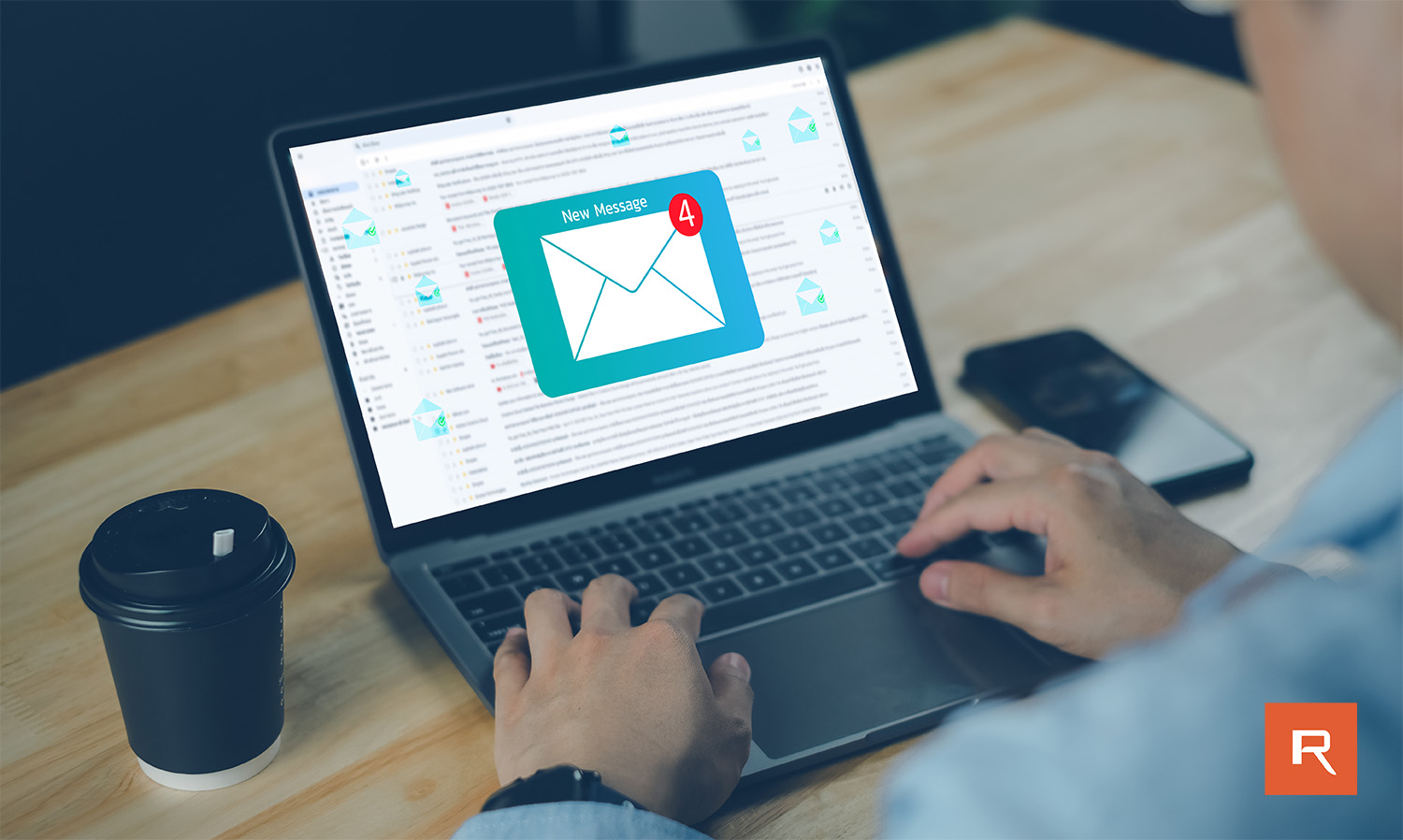
Google has started phasing out POP3-based email access for Gmail accounts, pushing users toward more secure and modern email protocols. If you're using Gmail to collect emails from another email address (such as a domain-based email), this change could directly affect you.
In this article, we'll explain why Gmail is removing POP3, how to check if you're using it, and what you should do to avoid email disruptions.
What Is POP3 and How Is It Used in Gmail?
POP3 (Post Office Protocol version 3) is an older email protocol designed to download emails from a mail server to a single inbox. In Gmail, POP3 is commonly used through the "Check email from other accounts" feature, where Gmail periodically connects to an external mail server and downloads incoming messages.While POP3 was suitable when emails were accessed from a single device, it does not support modern email usage patterns such as real-time syncing or multi-device access. Once emails are downloaded, they may be removed from the original server, and changes made on one device are not reflected elsewhere.
Why Gmail Is Removing POP3 Access
Google is removing POP3 support mainly due to security and technical limitations. POP3 does not support modern authentication methods and provides limited protection against unauthorized access. As security threats continue to evolve, older protocols like POP3 pose a higher risk.In addition to security concerns, POP3 offers limited functionality. It only supports one-way communication and does not synchronize folders, sent items, or read status across devices. Google is therefore encouraging users to move toward more advanced and secure protocols such as IMAP, which better align with current email usage and expectations.
How to Check Whether You Are Using POP3 in Gmail
Follow these steps to see if your Gmail account is using POP3 to fetch emails:- Log in to your Gmail account
- Click the gear icon (⚙) > See all settings
- Go to the "Accounts and Import" tab
- Look for "Check email from other accounts"
What Happens If POP3 Is Not Replaced
If no changes are made, Gmail will eventually stop fetching emails from external accounts configured via POP3. This means new emails sent to those addresses will not appear in Gmail, potentially resulting in missed or delayed communication. Since there is no automatic fallback method, proactive action is strongly recommended.What Should You Do Instead?
Option 1: Add Your Email as an IMAP Account in the Gmail App (Best Gmail-Friendly Option)
For users who prefer the Gmail interface, a practical solution is adding the domain email account directly to the Gmail app using IMAP. Instead of Gmail fetching emails in the background via POP3, the Gmail app connects to the mail server using IMAP and displays the mailbox alongside the Gmail inbox.This method is fully supported by Google and provides two-way synchronization, allowing users to send and receive emails from their domain email address within the Gmail app itself.
How to Add an IMAP Email Account to the Gmail App
On Mobile (Android / iOS)
- Open the Gmail app
- Tap your profile picture > Add another account
- Select Other
- Enter your email address
- Choose IMAP
- Enter your email password
- Enter the server details provided by your hosting provider
Note: Gmail web does not support full IMAP inbox integration like the mobile app. For full two-way sync, use the Gmail mobile app or a desktop email client.
Option 2: Continue Using POP3 by Configuring a Different Mail Client
If you prefer to continue using POP3, Gmail will no longer be suitable for fetching emails using this protocol. However, POP3 can still be used by configuring your email account with a dedicated email client such as Microsoft Outlook, Mozilla Thunderbird, or Apple Mail.These email clients allow you to connect directly to your mail server using POP3 and download emails to your device, similar to how Gmail previously fetched emails. This option may be suitable for users who access emails from a single device and are comfortable managing emails locally.
Option 3: Use Email Forwarding (Not Recommended)
Protecting Your Emails When Switching from POP3 in Gmail to IMAP or Another Mail Client
When POP3 is configured in Gmail using the "Check email from other accounts" feature, emails are fetched from the external mail server and stored inside the Gmail mailbox. In many cases, POP3 is also configured to remove emails from the original server after download. This means Gmail effectively becomes the primary location where those emails are stored.Before switching to IMAP or configuring a different mail client, it is essential to ensure that your existing emails in Gmail are safely backed up. Since Gmail already holds the downloaded emails, the backup should be taken directly from Gmail, not from the original mail server.
The safest approach is to export your Gmail data using Google Takeout, which allows you to download a copy of your emails in MBOX format. This backup ensures that even if emails are accidentally deleted or settings are changed during the transition, a complete copy of your mailbox is preserved.
Final Thoughts
Gmail removing POP3 access marks an important shift toward more secure and modern email standards. While POP3 allowed emails to be downloaded to a single device, it lacks synchronization, security, and multi-device support. Users can continue email communication seamlessly by switching to IMAP, adding their domain email directly to the Gmail app, or using email forwarding. Before making any changes, backing up your Gmail emails via Google Takeout ensures that no messages are lost during the transition. Taking these steps will provide a safer, more reliable, and fully synchronized email experience moving forward.For further details and official updates, refer to Google's documentation available on support.google.com.
Act now to secure your emails and enjoy a seamless, modern email experience with Gmail.
 Written by: Register.lk Support Hero - Shamendra
 28-May-2026
 26-May-2026
 05-May-2026
Safe & Secure Payments Accepted via: