





Live Chat

Domain Scan

(empty)

Login

WordPress Guide: Uploading Large Files via Plugins, Themes, cPanel and FTP
(06-oct-2025)
Uploading large files to a WordPress site can be challenging due to default file size limits. Fortunately, there are several ways to manage large file uploads whether from within WordPress itself or through hosting tools like cPanel and FTP.
WordPress File Upload Methods
1. Uploading Large Theme Files via the WordPress Dashboard
WordPress also allows uploading of large theme files (usually in .zip format) directly through the dashboard. This is useful when installing custom or premium themes that exceed the default file size limit.
Steps to upload a theme ZIP file:
- Log in to your WordPress dashboard.
- Navigate to Appearance > Themes.
- Click the Add Theme button at the top.
- Select Upload Theme and choose your .zip file.
- Click Install Now, then activate the theme once the upload is complete.




2. File Upload Plugins
Certain WordPress plugins are designed to simplify file uploads. They often use internal PHP functions to bypass some server-side restrictions and work around file upload limitations.
These plugins can allow both administrators and users to upload larger files directly through the WordPress dashboard or via simple front-end forms. Common features include file size control, file type restrictions, and secure upload handling.
In some cases, uploading through a plugin or theme fails due to conflicts with other plugins, themes, or existing files. This can prevent the upload process from completing successfully.
What to do in such instances:
- Disable all plugins
- Try uploading the file again
- Re-enable each plugin or theme one by one to identify the source of the conflict
- Take necessary actions once the issue is identified
Other Ways to Upload Large Files
If plugins or theme uploads do not work or if you prefer server level control or don't have access to the WordPress dashboard, you can use the following methods to upload files.
1. Increase Upload Limits via MultiPHP INI Editor
To increase file size limits on your hosting package:
- Log in to your cPanel account
- Navigate to MultiPHP INI Editor
- Select your domain
- Locate and adjust the upload_max_filesize setting (Ex: 64M, 128M)
- Save the changes by clicking "Apply"
- Directly upload the necessary files to your file manager.
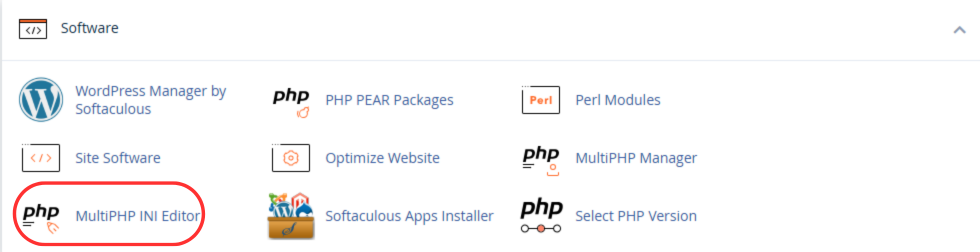
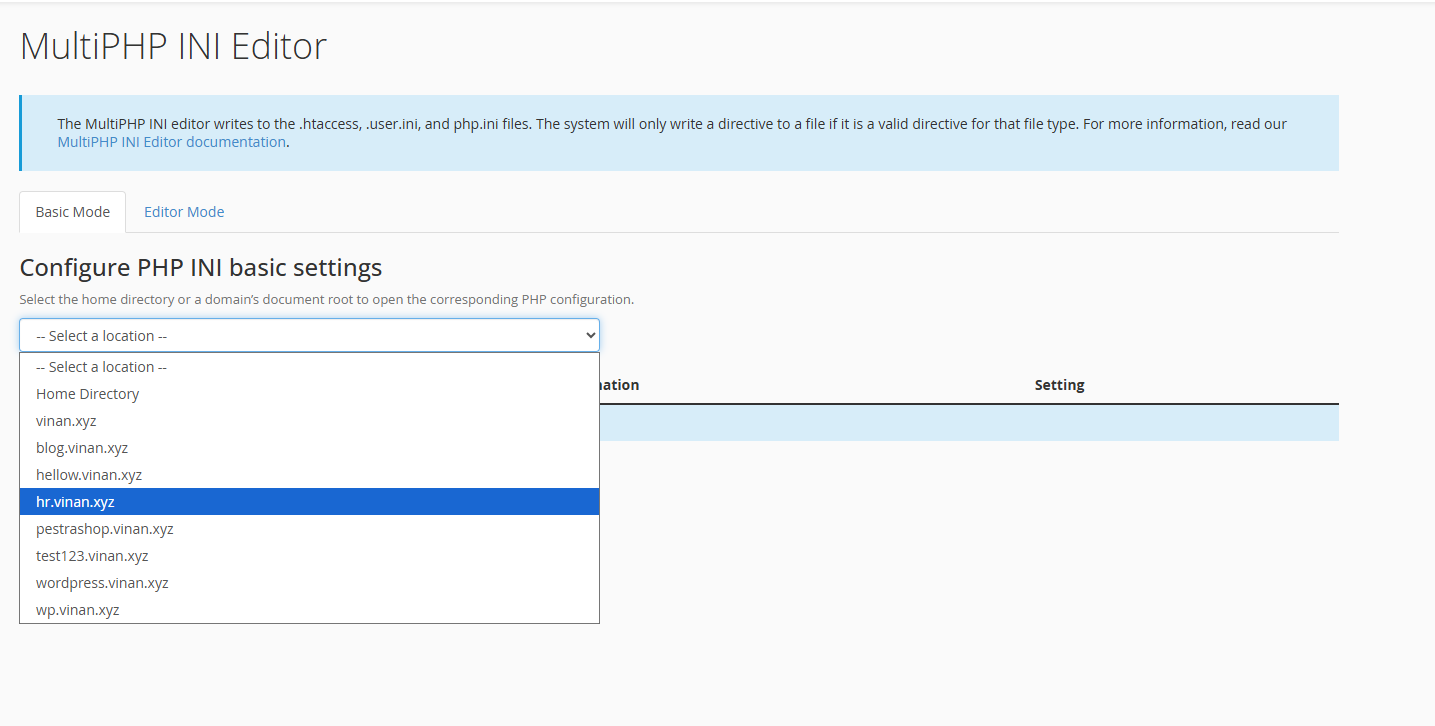
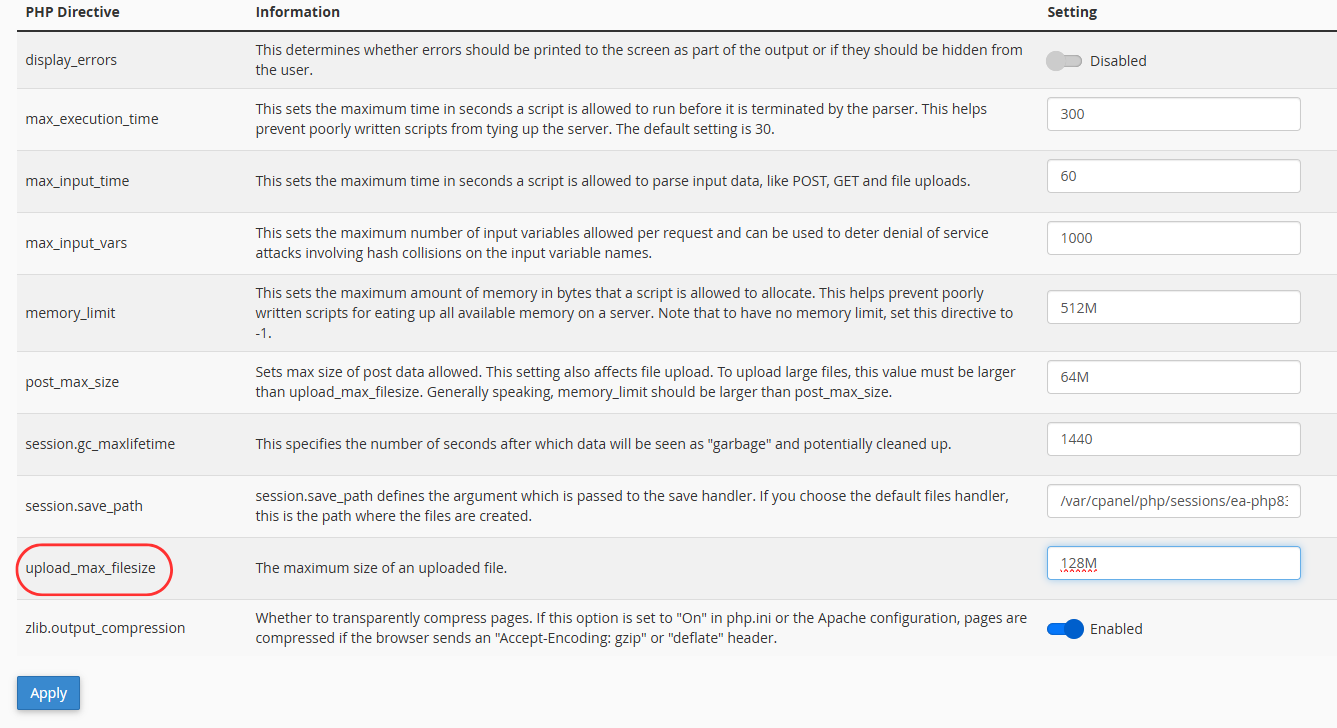
This method updates PHP settings server-side, allowing WordPress to accept larger uploads without extra plugins.
2. Upload Files via ZIP Archive in cPanel
To manually upload large files or folders:
- Compress your file(s) into a .zip archive using a tool like WinRAR or 7-Zip
- Log in to cPanel
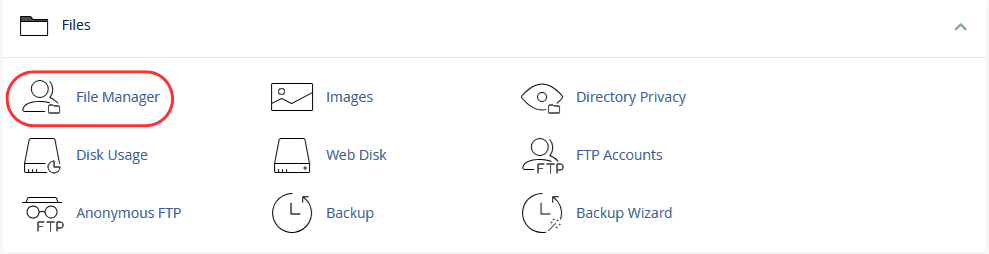
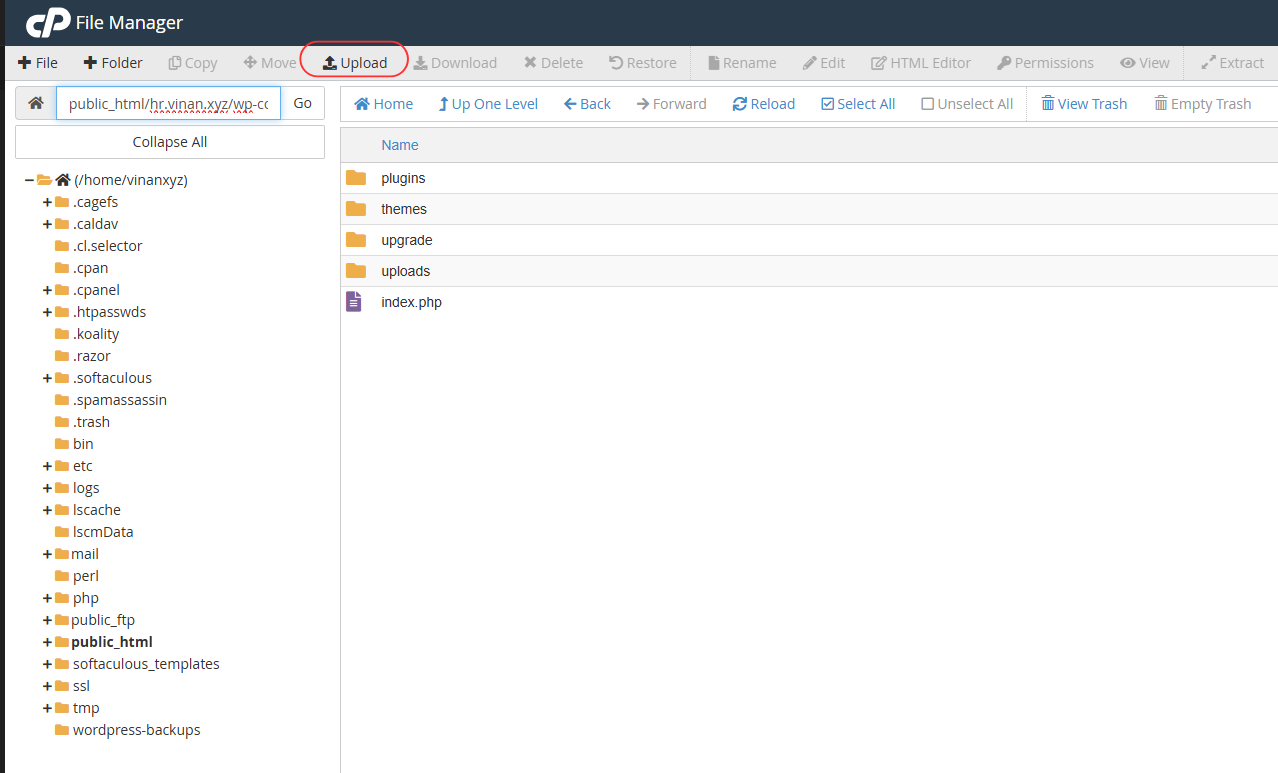
- Open File Manager
- Navigate to the target folder (Ex: public_html or wp-content/uploads/)
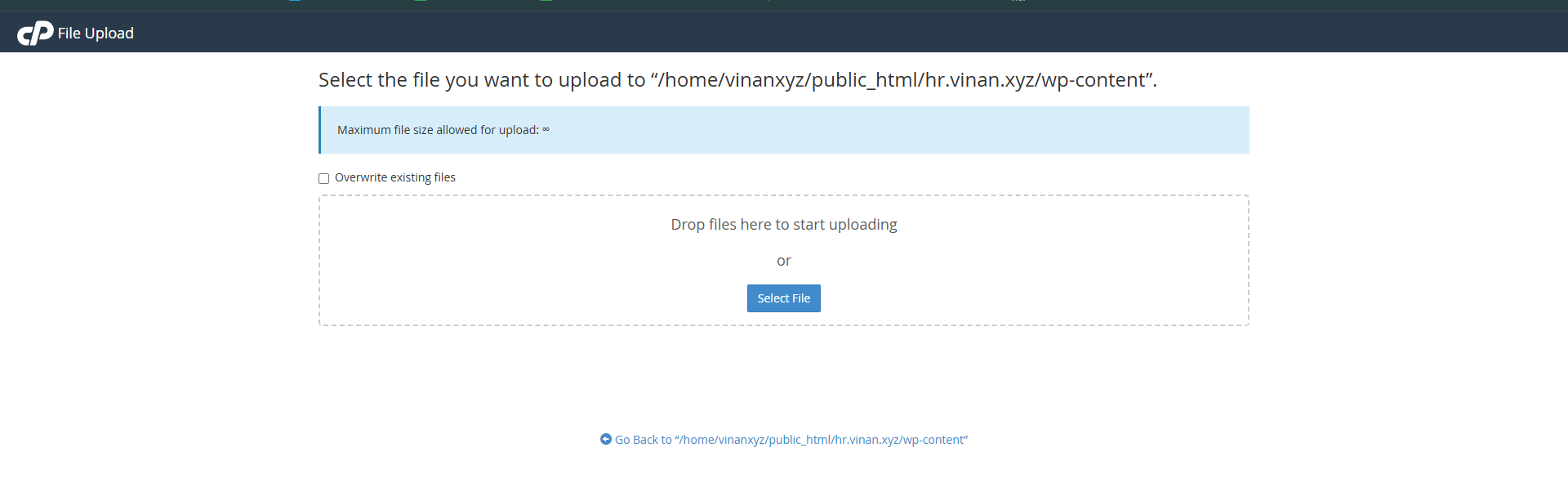
- Click Upload, then select and upload your ZIP file
- Once uploaded, extract the ZIP file directly within File Manager
3. Upload Files Through FTP
Using FTP (File Transfer Protocol) is another reliable way to upload large files directly to your WordPress directory or cPanel.
Steps to upload files via FTP:
- Create or access an FTP account in cPanel: go to cPanel > FTP Accounts
- Install an FTP client on your computer (Ex: FileZilla)
- Connect to your server using your FTP credentials
- Navigate to the desired folder
- Drag and drop the required files from your local device to the server
For further details on how to configure your FTP accounts, check out our guide: How to Transfer Files to Your Website via FTP
This method is especially useful for managing multiple file transfers efficiently.
Security Tips for File Uploads
- Allow uploads only from trusted users or administrators
- Set strict file type restrictions (Ex: only .jpg, .pdf, .docx)
- Regularly monitor the /wp-content/uploads/ and plugin folders
- Keep all themes and plugins updated to prevent vulnerabilities
Conclusion
Uploading large files to your WordPress site doesn't have to be a hassle. Whether you're using plugins, uploading theme ZIP files through the dashboard, or turning to more advanced methods like cPanel and FTP, there's a solution for every scenario. By understanding the available options and applying the right method based on your access level and technical comfort, you can easily manage larger uploads without running into frustrating file size limits. Just remember to keep security in mind and regularly maintain your site to avoid future issues.Get your files online, no limits, no stress.
 Written by: Register.lk Support Hero - Vinan