





Live Chat

Domain Scan

(empty)

Login

How to Deploy a React.js App on Shared Hosting
(17-jun-2025)
Deploying your React.js app on shared hosting using cPanel might seem daunting at first, but fear not this comprehensive guide is here to simplify the process. Whether you're just starting out or looking for a refresher, our step-by-step instructions, complete with clear code snippets and visual aids, will guide you seamlessly through every stage. By the end of this guide, you'll confidently know how to build, compress, upload, and configure your React app, ensuring a smooth and successful deployment.
Step 1: Build the React App
Before uploading your app, you need to create a production-ready build that contains all the optimized static files.
- Navigate to Your Project Directory:
Open your terminal and run:
cd your-react-app
- Create the Production Build:
Run the following command to generate your build files:
npm run build
This command creates abuildfolder that contains all the necessary optimized files for your app.

Step 2: Compress the Build Folder
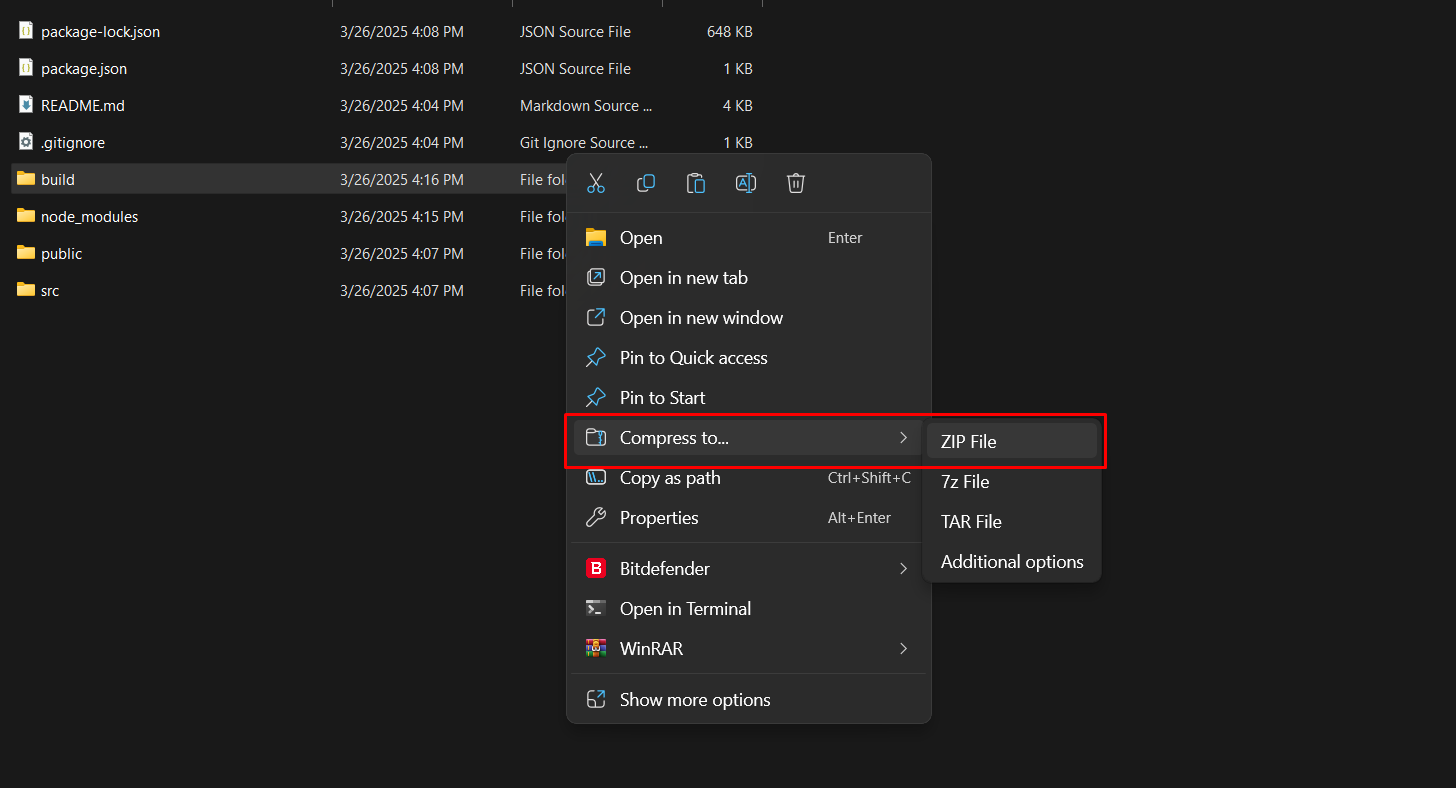
- Locate and Compress the Build Folder:
Open your file explorer, locate thebuildfolder in your React project, and right-click it. Choose the option to compress or "Send to Zip" (depending on your OS). This will create a file namedbuild.zip.
Step 3: Upload the Build Archive to cPanel
- Log in to cPanel:
Open your web browser and log in to your cPanel account. - Access File Manager:
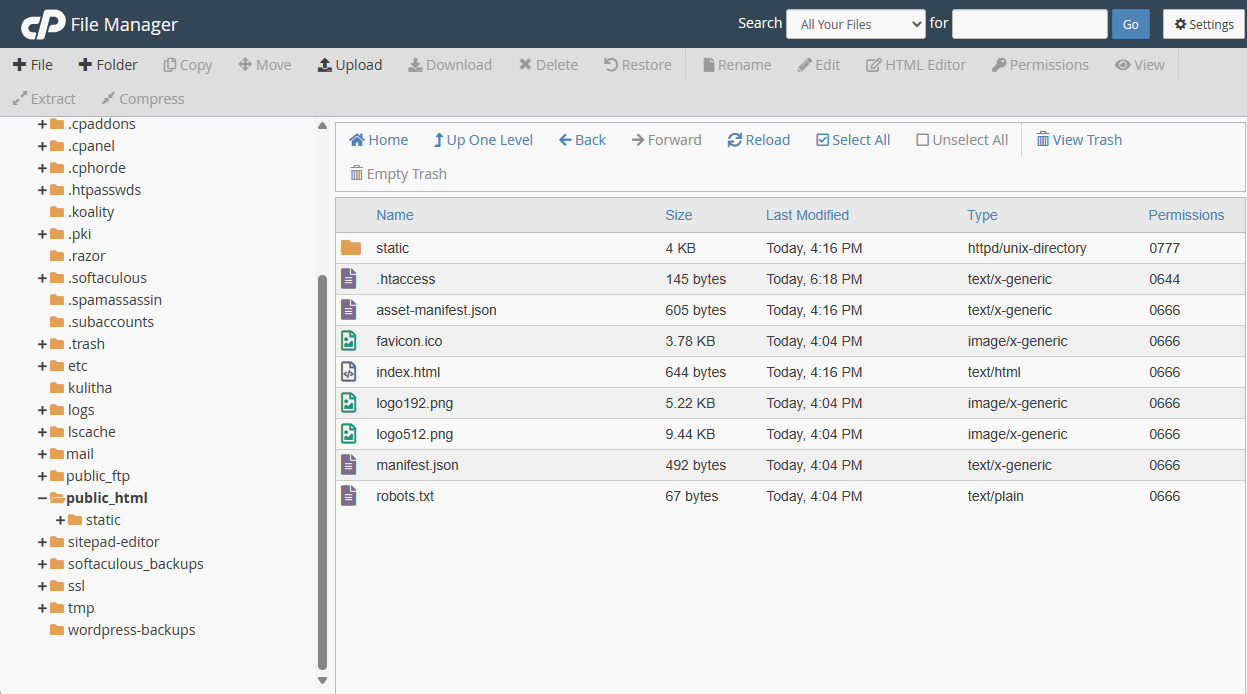
Navigate to the File Manager and open thepublic_htmldirectory (or the directory for your subdomain if applicable). - Upload the .zip File:
Click the Upload button, select yourbuild.zipfile, and wait for the upload to complete. - Extract the Archive:
Once uploaded, right-click thebuild.zipfile in File Manager and select Extract. This will unpack your app files into the directory.
Step 4: Configure the .htaccess File
- Open or Create the .htaccess File:
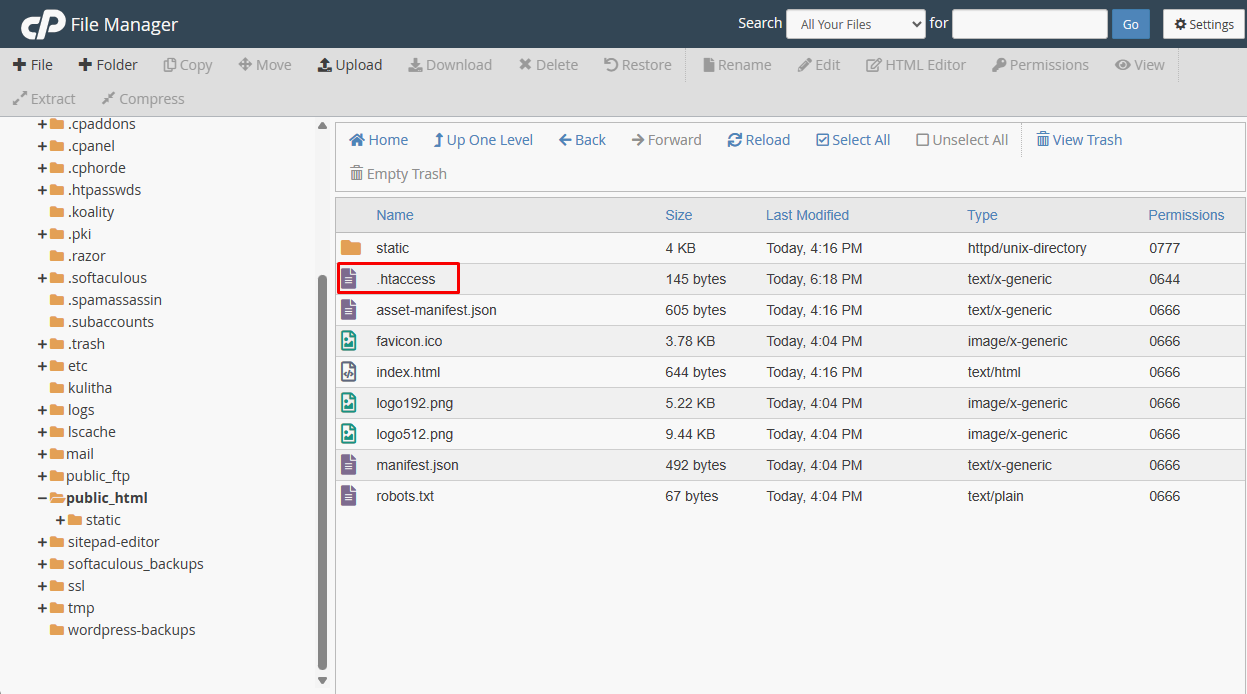
In thepublic_htmldirectory, check for an existing.htaccessfile. If it doesn't exist, create a new file named.htaccess. - Add the Rewrite Rules:
Edit the file and insert the following code:Options -MultiViews RewriteEngine On RewriteCond %{REQUEST_FILENAME} !-f RewriteCond %{REQUEST_FILENAME} !-d RewriteRule ^ index.html [QSA,L]
These rules redirect all non-existent file or directory requests toindex.html, enabling React Router to manage navigation.
Step 5: Test Your Deployment
- Visit Your Domain:
Open your browser and go to your domain (e.g.,https://yourdomain.com). - Check for Functionality:
Navigate through your app's routes. Confirm that the pages load correctly and that the routing is properly managed by React Router.
Conclusion
This guide provides a detailed walkthrough from building your React app to testing your deployment ensuring that even beginners can successfully deploy their app on shared hosting using cPanel. Replace each screenshot placeholder with your own visuals to enhance the clarity of the process.
Your React.js app is live, happy deploying!
 Written by: Register.lk Support Hero - Kulitha



 28-May-2026
 26-May-2026
 05-May-2026