





Live Chat

Domain Scan

(empty)

Login

What Is a Plugin Conflict in WordPress?
(01-apr-2026)
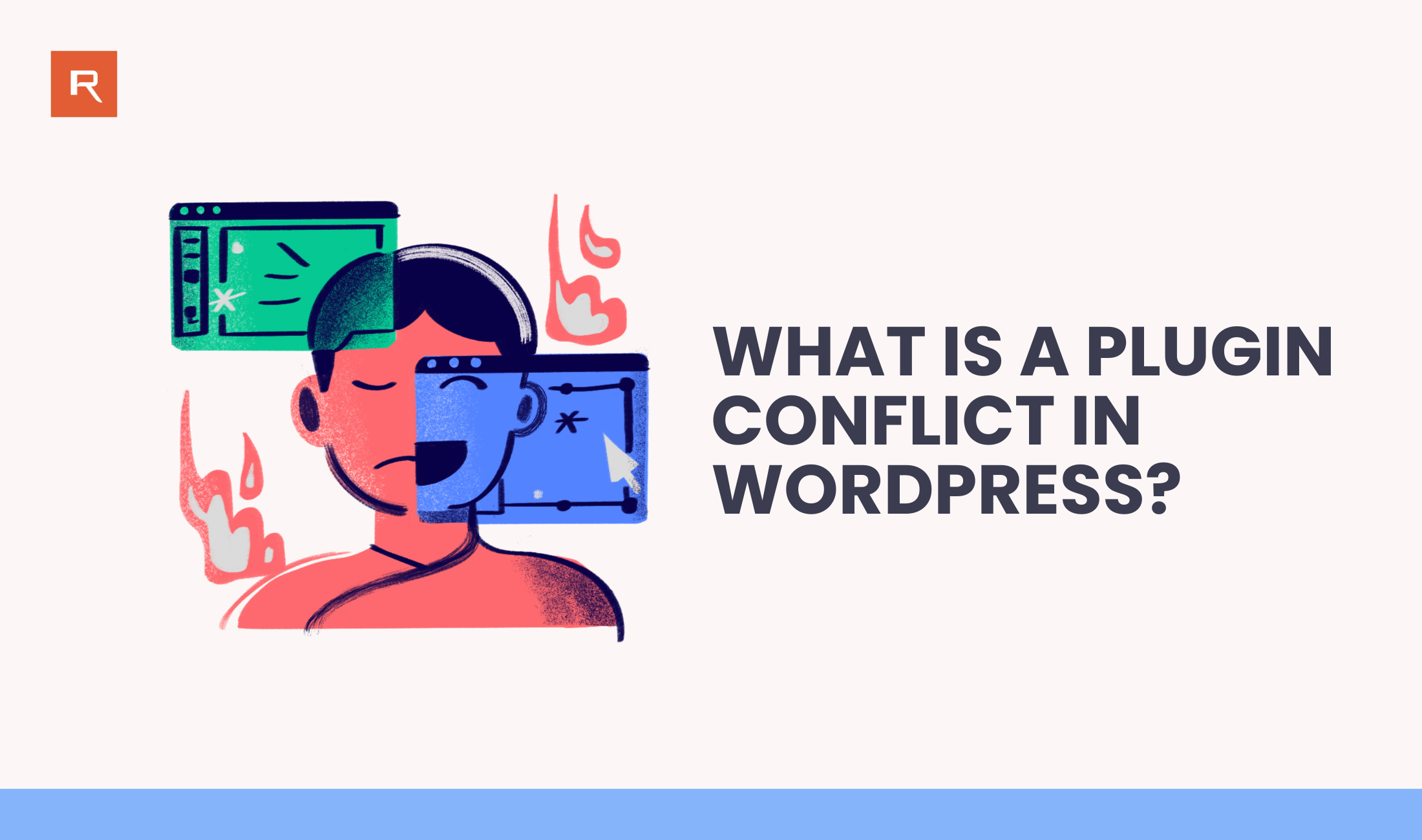
WordPress plugins are one of the best things about WordPress-you can add contact forms, SEO tools, security features, page builders, and almost anything else with a few clicks. But sometimes, two plugins don't "play nice" together. When that happens, you get what's called a plugin conflict. A plugin conflict is simply when one plugin interferes with another plugin (or with your theme, or even WordPress core) and causes your site to behave strangely or break certain features.
What causes plugin conflicts?
Plugin conflicts usually happen because different tools try to do the same thing, or they load scripts in a way that clashes. Common reasons include:
- Two plugins doing similar jobs (example: two caching plugins, two security plugins, multiple page builders)
- Poorly coded or outdated plugins that don't match the latest WordPress version
- JavaScript or CSS conflicts (very common with page builders, sliders, popups, and form plugins)
- PHP function/class conflicts where two plugins use the same names or override each other
- Plugin updates that change behavior and suddenly break compatibility with another plugin or your theme
- Theme + plugin conflicts (the plugin works, but not with your current theme)
Signs your WordPress site has a plugin conflict
Not all conflicts show a clear error. Sometimes the site looks "fine" but something stops working. Watch for these common symptoms:
- A feature suddenly stops working (forms not sending, checkout not loading, buttons not clicking)
- White screen (blank page) or the site becomes inaccessible
- 500 Internal Server Error
- Critical error message in WordPress
- Admin dashboard becomes slow, frozen, or partially broken
- Layout issues after enabling a new plugin (missing styling, broken sections)
- Random issues only on specific pages (cart, checkout, login, contact page)
When do plugin conflicts usually happen?
Most plugin conflicts appear right after one of these actions:
- You installed a new plugin
- You updated a plugin
- You updated your theme
- You updated WordPress core
- You enabled performance features like caching/minification
So if your site was working yesterday and broke today, think about what changed.
How to find out which plugin is causing the conflict
Here's the most reliable troubleshooting method (even for beginners):
1. Use a backup (important)
Before you touch anything, make sure you have a recent backup. If something goes wrong, you can restore quickly.
2. Disable plugins one by one (the safest test)
- Go to WordPress Dashboard → Plugins
- Disable all plugins first (or disable the newest plugin you installed/updated)
- Check if the issue is gone
- If the issue is fixed, re-enable plugins one at a time until the issue returns. The plugin you enabled last is likely the cause.
3. Check if it's a theme conflict
If disabling plugins doesn't help:
- Switch temporarily to a default theme like Twenty Twenty-Four
- Check again. If the issue disappears, it's likely your theme + plugin combination causing the conflict.
4. If you can't access wp-admin
If the conflict breaks your admin area:
- Use File Manager / FTP and rename the plugin folder: wp-content/plugins → rename the problem plugin folder (or rename the entire plugins folder to disable all plugins)
- Once the site is back, restore the folder name and test plugins one by one.
How to fix a plugin conflict (without breaking your site)
Once you find the plugin causing the issue, you have a few options:
- Update everything (WordPress, the plugin, and the theme) - many conflicts are already fixed in updates
- Replace the plugin with a better-maintained alternative
- Adjust plugin settings (common with caching/minification plugins)
- Contact the plugin developer with the exact conflict details
- Use a staging site to test changes safely before applying them to your live site
Best practices to prevent plugin conflicts
You can't avoid conflicts 100%, but you can reduce them a lot by following these habits:
- Use well-known, regularly updated plugins with good reviews
- Avoid installing multiple plugins that do the same job (especially caching, security, and builders)
- Update plugins one by one, not all at once (so you can identify what caused issues)
- Test major updates on a staging environment
- Keep your WordPress core and theme updated
- Always maintain regular backups
Conclusion
A plugin conflict in WordPress is basically a compatibility problem-two parts of your site are fighting each other. The good news is that most conflicts are fixable with a simple "disable and test" process, especially if you keep backups and update carefully. If you want fewer headaches long-term, choose trusted plugins, avoid duplicates, and test changes before pushing them live-your WordPress site will stay stable, faster, and much easier to manage.
Prevention beats troubleshooting - keep your plugins lean, updated, and tested.
 Written by: Register.lk Support Hero - Yusuf
 31-Aug-2026
 07-Aug-2026
 28-May-2026